
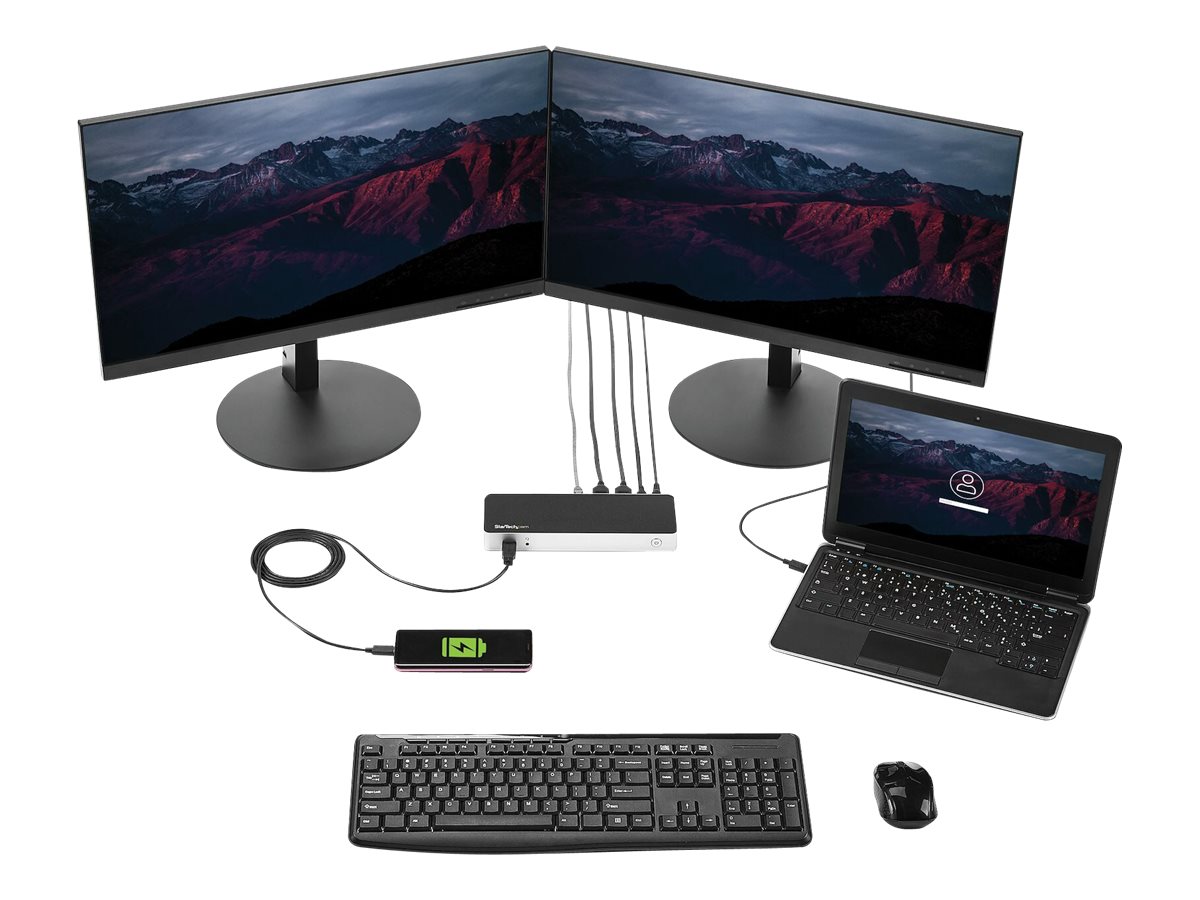
Modern work often requires managing multiple applications at the same time. Whether you are working with spreadsheets, researching online, editing documents, attending video meetings, or monitoring business tools, switching between windows can quickly become frustrating. A dual-monitor setup provides a practical solution by giving you more screen space and allowing different tasks to remain visible simultaneously. However, connecting two external displays to a Windows laptop or desktop can sometimes require additional hardware. This is where a Windows docking station for dual monitors becomes especially useful.
What Is a Windows Docking Station?
A docking station is a device that expands the connectivity and display capabilities of a computer. Instead of connecting multiple peripherals directly to a laptop, users can connect them to the dock and then connect the dock to the computer through a compatible port.
Depending on the model, a docking station may provide HDMI, DisplayPort, USB-A, USB-C, Ethernet, audio, and other connections. A suitable Windows docking station for dual monitors can allow two displays to work alongside your laptop screen or as two independent external monitors.
This arrangement is particularly valuable for professionals who want a cleaner desk, easier cable management, and a more efficient workflow.
Why Dual Monitors Improve Productivity
The biggest advantage of two monitors is the additional workspace. With a single screen, you may constantly minimize and maximize windows or switch between applications. Dual displays reduce this interruption.
For example, one monitor can display an email application while the other shows a spreadsheet or project-management platform. Writers can keep research open on one screen while drafting content on the second. Developers can view code on one monitor and testing tools on the other.
Video meetings also become easier because you can keep the meeting window on one display while continuing other work on the second. The result is a workspace that supports multitasking without requiring constant window switching.
Choosing the Right Docking Station
Not every docking station supports two monitors in the same way. Before buying one, check the specifications of your computer and the dock.
The first consideration is the available connection on your Windows device. USB-C is common on modern laptops, but not every USB-C port supports video output. Some computers may use Thunderbolt or USB4 connections, while older systems may rely on USB-A.
The docking station must also support the resolutions and refresh rates you expect to use. If you want two high-resolution monitors, verify that the dock can handle both displays simultaneously rather than assuming that two video ports automatically guarantee dual-display support.
Check Display Connections Carefully
Display connectivity is another important factor. HDMI and DisplayPort are widely used, but their capabilities can vary depending on the hardware version.
Before purchasing a dock, identify the ports available on your monitors. If one monitor uses HDMI and another uses DisplayPort, choosing a dock with both connections can simplify your setup.
Adapters can sometimes solve compatibility problems, but using fewer adapters generally makes the system easier to configure and troubleshoot.
Windows Compatibility Matters
A docking station should be compatible with the Windows version and hardware configuration of your computer. Some docks use technologies that require additional drivers or software, particularly when they support multiple displays through USB-based graphics technology.
Native display support through compatible USB-C, Thunderbolt, or USB4 connections can provide a straightforward experience, but the exact capabilities depend on the computer.
It is also worth checking whether the dock supports features such as charging through USB-C Power Delivery. A compatible dock can potentially allow you to connect displays and peripherals while charging your laptop through one cable.
Setting Up Two Monitors
Once you have selected the appropriate equipment, connecting the system is generally straightforward.
Start by connecting the docking station to your Windows computer. Then connect each monitor to the appropriate video output on the dock. Connect your keyboard, mouse, Ethernet cable, external storage, webcam, or other accessories if needed.
After Windows detects the displays, open the display settings to configure their arrangement. You can choose which monitor is positioned on the left or right and identify the primary display.
Windows also lets you select how the screens should work. For productivity, the “Extend” option is normally the most useful because it creates one larger desktop across both monitors.
Organizing Your Workspace
Having two monitors is useful, but organization determines how much productivity you actually gain.
A simple approach is to dedicate each screen to a specific type of work. For example, the primary monitor can hold your main project while the secondary monitor displays communication tools, research, calendars, or reference documents.
Another approach is to use one monitor for active work and the other for monitoring. This can be particularly useful for customer support, financial dashboards, analytics, or project management.
You should also position the monitors comfortably. Ideally, both screens should be at a height that reduces excessive neck movement. If possible, place the primary monitor directly in front of you and angle the secondary monitor slightly toward your viewing position.
Benefits Beyond Additional Screen Space
A Windows docking station for dual monitors can provide more than just display expansion. It can turn a laptop into a desktop-style workstation with a single connection.
Instead of repeatedly plugging in a monitor, keyboard, mouse, Ethernet cable, webcam, and other accessories, you can leave everything connected to the dock. When you return to your desk, connecting the laptop to the docking station can make the entire workstation available.
This is particularly convenient for hybrid workers who regularly move between a home office, workplace, classroom, or meeting room.
Common Problems to Watch For
Dual-monitor setups can occasionally experience problems. If one monitor is not detected, first check the cable and input source. Then verify that Windows recognizes the display in its display settings.
If the monitors work individually but not together, the issue may involve the docking station’s maximum display capabilities, available bandwidth, computer hardware, or driver configuration.
Screen flickering can also result from poor-quality cables, incompatible refresh-rate settings, or connection limitations. Updating Windows, graphics drivers, and dock firmware when appropriate can help resolve compatibility issues.
Another important consideration is power. Some laptops may require a higher-wattage charger than the docking station provides. Check the dock’s charging specifications before relying on it as your primary laptop charger.
Who Can Benefit From a Dual-Monitor Dock?
A dual-monitor docking setup can benefit many different users. Office professionals can keep communication and productivity applications visible simultaneously. Designers can use one display for creative work and another for reference material. Programmers can dedicate one screen to development tools and another to documentation or testing.
Students and researchers can also benefit by keeping notes, research materials, and writing applications open at the same time. Business owners and remote workers can create a more organized workspace without purchasing a traditional desktop computer.
Final Thoughts
A Windows docking station for dual monitors can transform a Windows laptop into a flexible and productive workstation. By combining multiple displays with convenient peripheral connectivity, a docking station reduces cable clutter and makes multitasking easier.
The key is to choose a dock that matches your computer’s ports, display requirements, resolution needs, charging capabilities, and operating environment. Once properly configured, two monitors can provide a significantly more comfortable workspace for professional tasks, creative projects, research, communication, and everyday computing.